Interview Scheduling Without the Email Back-and-Forth
Booking an interview should take a few clicks, not a dozen emails. GoVerse Interview Scheduling lets you set up an interview from the same screen where you review applicants. Propose a time, or let the candidate pick from slots your interviewers have approved. GoVerse handles the invitation, the response, and the calendar invite.
Interview Scheduling is currently in beta and rolling out to Premium and above first, on its way to becoming a standard feature on every plan.
The problem with scheduling by email
Coordinating an interview is one of the quietest time sinks in hiring. You propose a time, the candidate is busy, you propose another, an interviewer drops out, and three days later a simple 45-minute conversation still is not on anyone's calendar. Multiply that across a full pipeline and scheduling becomes a job in itself.
The fix is to keep scheduling in the same place you already manage candidates, and to let the software do the chasing. That is exactly what Interview Scheduling does.
Book from the applicant list
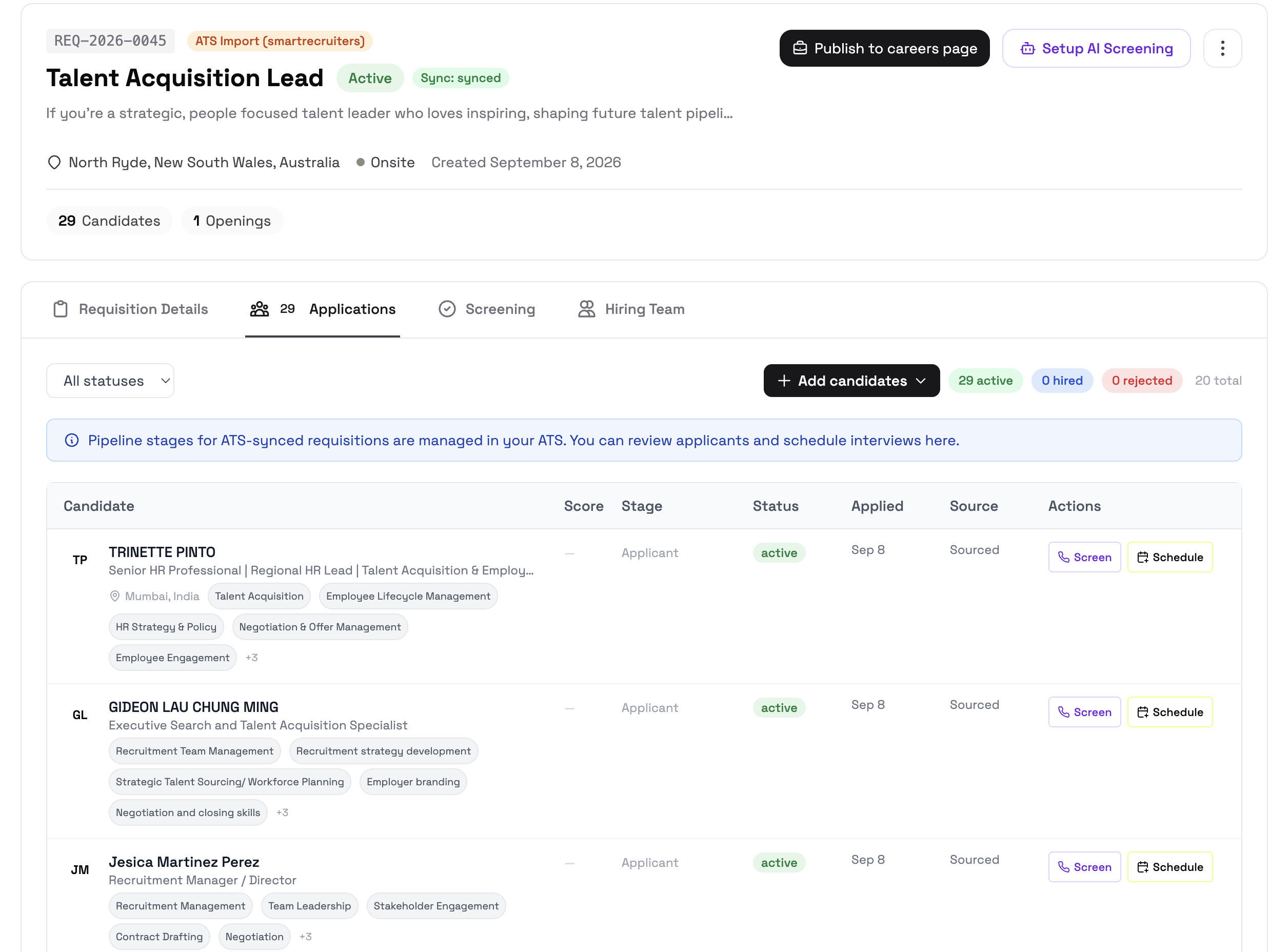
You start where you already are. Open a requisition, go to its Applications tab, and find the candidate you want to interview. A Schedule action sits right on the candidate's card, and selecting it opens the Schedule Interview window. There is no separate tool to open and no times to copy-paste into an email.
One thing to know before you start: an interview invitation is sent by email, so the candidate needs an email address on file. If GoVerse does not have one, the Schedule button is disabled with a clear note, and adding the candidate's email switches it back on.
Two ways to schedule
The Schedule Interview window offers two modes, so you can match the approach to the situation.
Set a time, when you already know when to meet
Pick a start date and time in 15-minute steps, choose a duration from a short call up to a full-day session, and choose a format: video call, phone, or in person. Set the time zone, which defaults to yours, and add any notes for the candidate. If you are not sure when to propose, a built-in suggestion assist offers sensible times you can drop straight into the form.
When you send it, the candidate receives an invitation asking them to accept or decline. The interview stays pending until they respond, which is an important detail: a time on your calendar is only confirmed once the candidate says yes.
Request availability, when the candidate should pick
For busy panels, offering options beats pinning down one time. Give a date range to look across and the interview length you need, set a response deadline so the request does not sit open forever, and optionally have your interviewers submit the windows they are free.
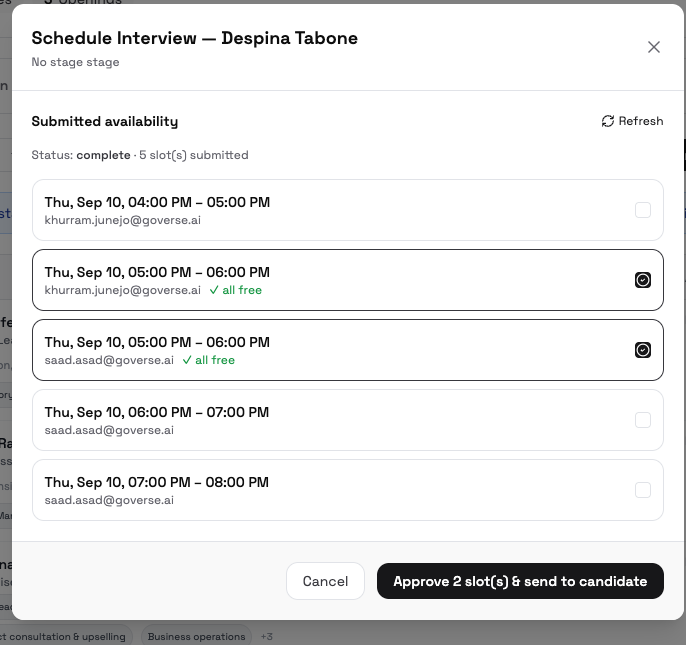
Each interviewer gets an email inviting them to share their availability, which opens a simple page with no login needed where they add their free windows. When availability comes back, the applicant shows a ready to approve prompt. You tick the times you want to offer, with a clear all free badge where every interviewer is available, and send them to the candidate. The candidate opens a link, chooses one of your approved times, and the interview is confirmed.
What the candidate sees
Candidates never need a GoVerse login. They receive an email from your company, the employer on the requisition, with a secure link. If you proposed a time, the link opens a page with the interview details where they accept or decline. If you requested availability, it lists your approved times where they choose one.
Once the interview is confirmed, the candidate and your interviewers receive a confirmation email with a calendar invite attached, so it lands straight in their calendar. The calendar file is attached to the confirmation, once a time is locked in, rather than to the initial invitation, which keeps things clear for everyone.
Status you can read at a glance
Back on the applicant list, small informational icons tell you where each candidate stands: an interview that is upcoming, one where you are awaiting the candidate's reply, or one that is done. An availability request shows an awaiting state while interviewers or the candidate still need to act, and a ready state once availability has come back for you to approve. You always know who is scheduled, who still owes you a reply, and whose interview has passed, without opening a single email thread.
A few tips
Add the candidate's email first, since a missing email is the most common reason the Schedule button is greyed out. Reach for Request availability whenever several interviewers are involved, because letting the candidate pick from approved windows saves the most back-and-forth. Remember that a proposed time is not final until the candidate confirms, and remind candidates to look for the calendar attachment on the confirmation email.
Scheduling that stays with your hiring
Because scheduling lives inside the requisition, it connects to everything else you do in GoVerse. The candidates you screen and shortlist are the same candidates you invite to interview, and the status of every interview sits alongside their profile and screening reasoning. Scheduling stops being a separate chore and becomes one more step that simply happens where your hiring already lives.
The recruiter who was sceptical about self-scheduling
A recruiter at an agency told me flatly that candidate self-scheduling never works. Her experience was that you send someone a list of times, they sit on it for three days, and by the time they pick one the interviewer's calendar has moved on. Her question was pointed: "What stops this from being the same mess, just with prettier emails?"
The answer is the deadline and the interviewer-approved windows. When she used Request availability for a panel role, her three interviewers submitted their free windows through the no-login page, she approved the times where all three were free, and the candidate got a short list with a response deadline attached. The candidate picked a slot the same evening. What convinced her was not that it was faster, it was that the slots the candidate saw were already confirmed as workable for the whole panel, so there was no round two of "actually that time no longer works." The back-and-forth she hated was gone because the availability was collected before the candidate ever chose.
Before and after, on a three-person panel
Before, booking a panel interview at her agency was a chain of emails: propose times to the candidate, discover an interviewer was double-booked, re-propose, wait for the candidate, chase the interviewer for a calendar hold. She reckoned a straightforward panel booking still ate the better part of two working days in dribs and drabs of email.
After, the same booking was one Request availability, interviewers submitting windows on their own time, one approval click where she offered the all-free slots, and the candidate confirming. The interview was locked in the same day, with the calendar invite attached to the confirmation email so it landed straight in everyone's calendar. Her comment was that the feature did not just save time, it removed the part of the job she actively disliked.
The status icons quietly changed her day
She did not expect the small status icons on the applicant list to matter much, but they became how she managed her mornings. An awaiting-reply icon told her who still owed her a response without opening a single email thread, and a ready-to-approve state told her which availability requests had come back and needed her attention. She stopped keeping a separate scheduling to-do list because the list was already on the applicant view.
What confused people at first
The most common stumble is the greyed-out Schedule button, and it always comes down to a missing email address. An interview invitation is sent by email, so a candidate with no email on file cannot be scheduled, and the button is disabled with a note explaining why. A few users read the note as a bug rather than a prerequisite. Adding the candidate's email switches the button back on immediately.
The other point of confusion is that a proposed time is not confirmed until the candidate accepts. When you Set a time, the interview stays pending until they respond, and the calendar invite is attached to the confirmation, not the initial invitation. A couple of recruiters assumed proposing a time meant it was booked and were surprised there was no calendar file yet. The reason is deliberate: nothing goes on a calendar until the candidate has actually said yes, which keeps calendars honest.
One thing we still want to improve
Interview Scheduling is in beta, rolling out to Premium and above first, and the honest gap today is calendar integration. The confirmation carries a calendar invite as an attachment, which lands in the candidate's and interviewers' calendars, but we do not yet read interviewer calendars directly to know their existing commitments. That is why the availability step exists: interviewers tell us when they are free rather than us checking automatically. Reading live calendar availability, so an interviewer's real bookings are respected without them submitting windows by hand, is the next piece of work. Until then, Request availability with a response deadline is the approach that saves the most back-and-forth, and I would reach for it any time more than one interviewer is involved.
Cut the scheduling back-and-forth
Book interviews from the applicant list, let candidates pick from approved slots, and send calendar invites automatically. Scheduling is rolling out in beta to Premium and above.
Start free trial →