Launch a Branded Careers Page in Minutes, and Let Applications Flow Straight In
Your open roles deserve a home that looks like you, not a generic job board. GoVerse Careers Pages give you a public, on-brand careers site at your own address, where candidates browse live roles and apply by uploading a CV. Every application lands directly on the right requisition, ready to review.
Why a careers page, and why now
Most hiring teams lose good candidates in the gap between interest and application. A role gets posted to a job board that buries your brand, the apply flow bounces the candidate through three different tools, and the resulting application lands somewhere that still needs a manual import before anyone can review it. Every one of those steps is a place to leak a great applicant.
A careers page closes that gap. It gives candidates one place to see every open role on a page that carries your brand, collects their application without extra tools, and drops that application straight onto the matching requisition inside GoVerse. No import step, no copy-paste, no lost candidates.
On-brand in one step with Match my brand
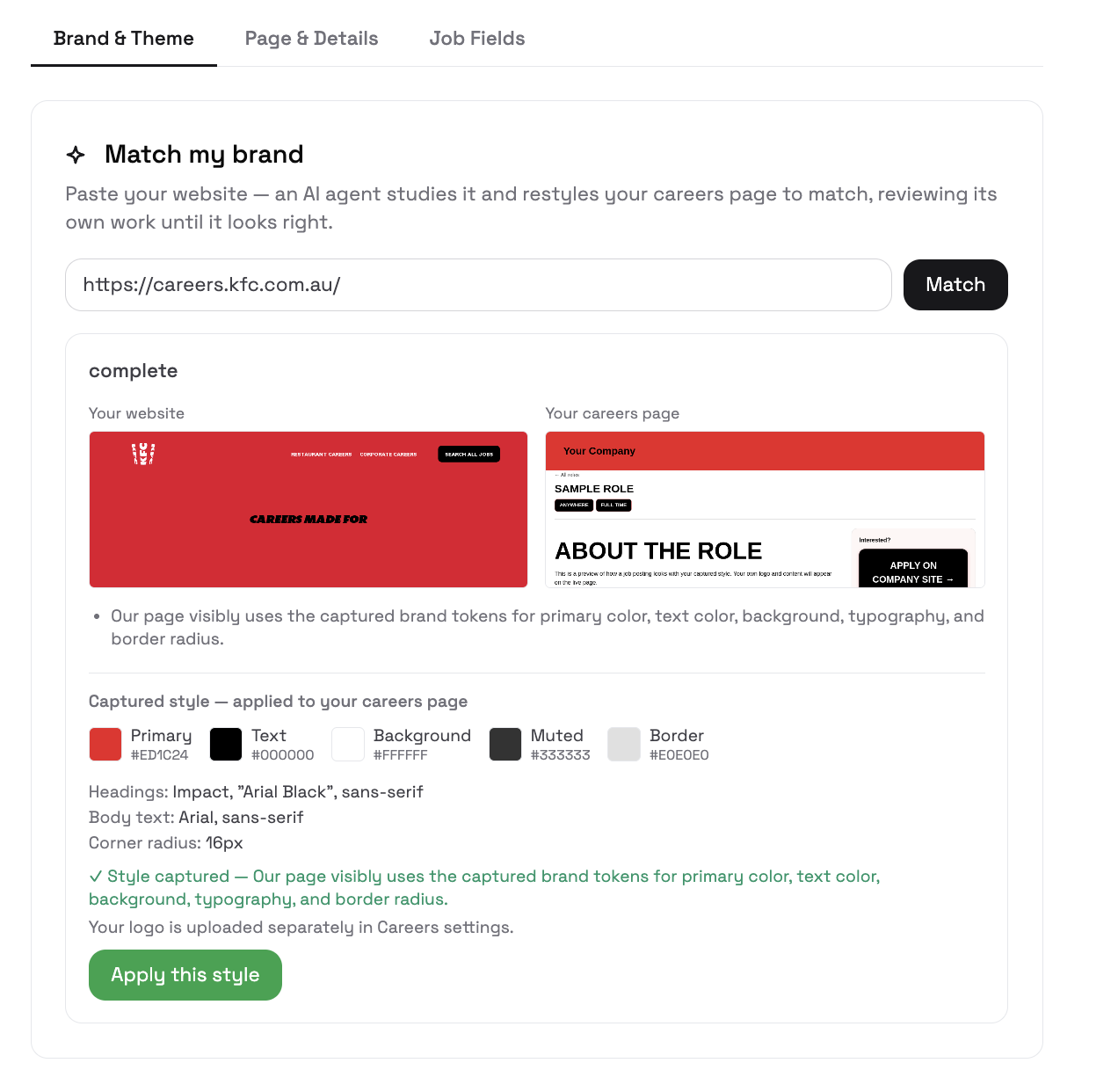
The fastest way to make your careers page feel like yours is the Match my brand option. Paste your company website, select Match, and an AI agent studies your site and restyles the careers page to fit: it pulls your primary colour, your text and background colours, your typography, and your corner radius, then shows you a side-by-side preview of your website next to your careers page. If you like what you see, apply the style and you are done.
Brand matching captures colours and fonts. Your logo is uploaded separately, along with your company name, tagline, and about text, so the finished page reads unmistakably as your employer brand.
Full control when you want it
If you would rather set things by hand, the Theme editor exposes every value: primary and brand colour, text on primary, background, body text, muted text, borders, heading and body fonts, corner radius, and content width, all with a live preview of a sample job card. You can view or download the generated CSS, then save. Manual changes are stored exactly as you set them, so what you preview is what candidates see.
You decide what is public
Turning your careers page on does not automatically expose every requisition, and that is deliberate. Each role is published individually from its requisition, so you stay in control of what goes live. A posting moves through a clear path: Draft, then Preview, then Approve, then Live.
Preview is the step teams appreciate most. It lets you see exactly how a role will look on the public page, privately and without being indexed by search engines, before anyone else can. When it looks right, approve it to make it appear on your live site. Change your mind later? Unpublish a role at any time to remove it from the public page.
You also choose which sections appear on public job pages: salary and compensation, benefits, about the company, skills, and experience level. Showing pay takes two switches, by design: enable salary in Job Fields and turn on show salary for the individual job, so compensation is never exposed by accident.
What candidates experience
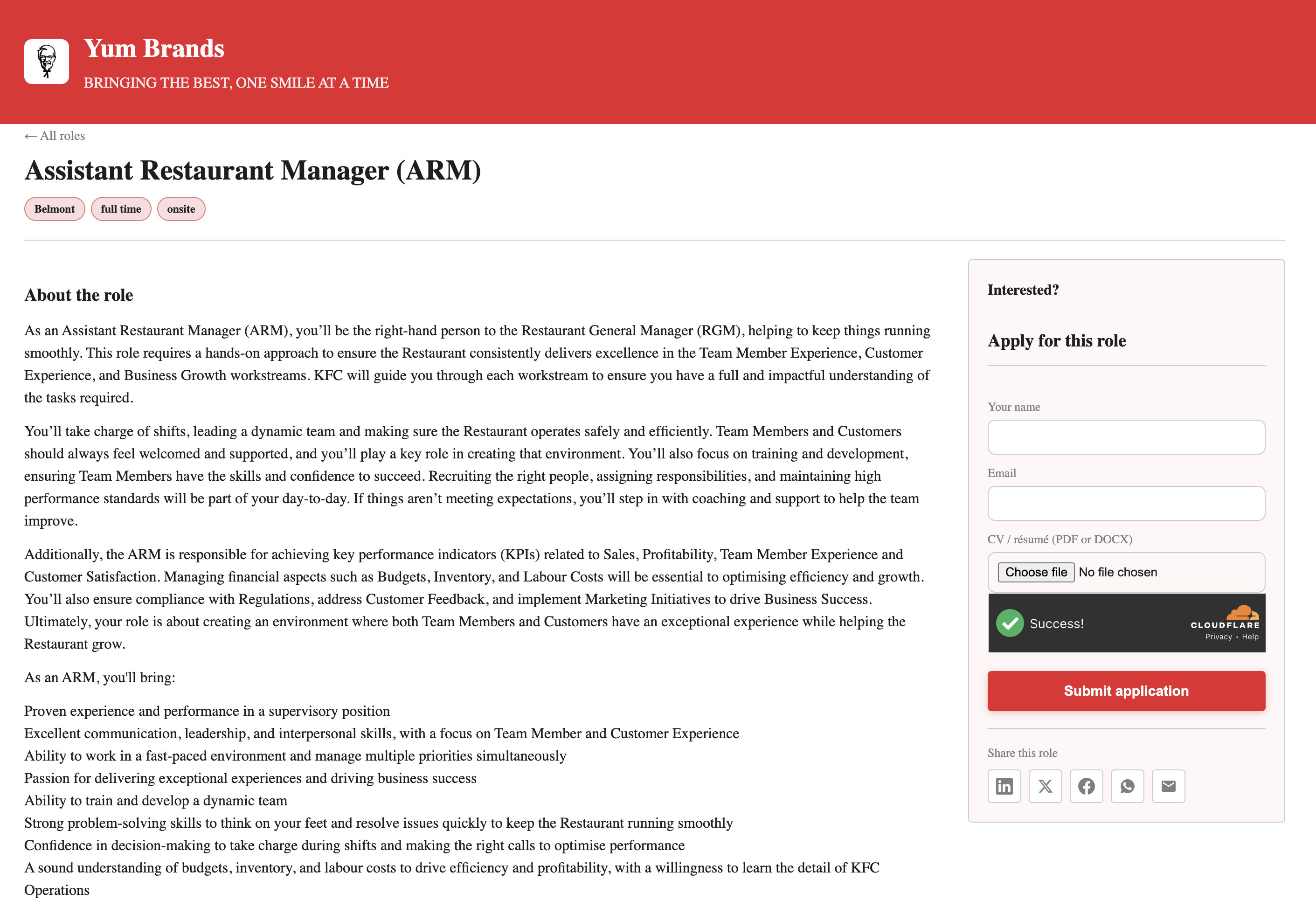
Visitors land on your branded Open roles page: your logo, colours, tagline, and about text, followed by a list of live roles with location and work-type tags. Selecting a role opens its full detail page with an Apply for this role form alongside it. The candidate enters their name and email, uploads their CV in PDF or DOCX, and submits. A spam check protects the form, and share buttons make it easy to pass a role around.
The important part happens on submit: the application is created on the matching requisition in GoVerse automatically. The candidate becomes an applicant you can screen, rank, and progress like any other, with no manual handling in between.
How it fits the rest of your hiring
A careers page is most powerful as the front door to a connected process. An application that arrives through your careers page is an applicant on a requisition, which means you can run AI screening against your criteria, search and compare candidates by skills, and move people through your pipeline without ever leaving GoVerse. The page attracts and captures; the platform does the rest.
Getting started
Open Settings, choose Careers Page, and work through three tabs: Brand and Theme, Page and Details, and Job Fields. Try Match my brand first to get a close-to-final look in one step, fine-tune in the Theme editor if you want to, choose your page address, and turn the page on. Then publish your first role from its requisition, previewing it before it goes live. In the time it takes to read this article, you can have a branded careers site collecting real applications.
The question that comes up in every careers-page demo
Almost every time I show this, someone asks the same thing: "Will it actually look like our site, or will it look like your site with our logo pasted on?" It is a reasonable worry. Plenty of careers-page tools produce something that is clearly a template wearing a costume. So in demos I stop talking and just paste the customer's own website into Match my brand while they watch.
The side-by-side preview is what settles it. One operations manager at a hospitality group pasted their site, hit Match, and went quiet for a second before saying, "That's our green." The AI had pulled their primary colour, their heading font, and their corner radius, and the job card in the preview sat next to their homepage looking like it belonged. She had budgeted a week of back-and-forth with a designer for this. It took her about a minute, then a few small manual tweaks in the Theme editor to nudge the muted text colour she was fussy about.
Before and after, from a team that had no careers page
Their before state was the common one. Roles went onto a couple of job boards where their brand disappeared into a grey list, and applications arrived by email as PDF attachments that someone downloaded and re-entered into a spreadsheet. Two people touched every application before a recruiter even saw it. Candidates who started an application on a clunky third-party form often did not finish.
After, they had a branded page at their own address inside an afternoon. A candidate now browses live roles, uploads a CV, and submits, and that application lands directly on the matching requisition as an applicant ready to screen. The manual download-and-retype step is gone. The detail she liked most was small: because the page carries their brand and reads like them, candidates who clicked through from their main site did not feel handed off to a stranger. Fewer people dropped out between "interested" and "applied."
The publishing flow does more work than it looks like it does
Turning the page on does not expose every requisition, and that surprised a few people who assumed enabling the page would dump their whole pipeline online. Each role publishes individually through Draft, Preview, Approve, Live. Preview is the step teams lean on hardest, because it lets them see the public version privately, unindexed, before anyone else can. One recruiter previews every role on her phone before approving it, because that is how most of her candidates will see it.
What confused people at first
Salary visibility was the single most common point of confusion, and it is confusing by design because we chose safety over convenience. Showing pay takes two switches, not one: you enable salary in Job Fields, and then you turn on show salary for the individual job. A couple of users toggled one and wondered why the figure was not appearing on the public page. The reason for two switches is that compensation should never leak onto a public page by accident, so we made it deliberate. Once people understood why, they stopped fighting it.
The other early stumble was expecting Match my brand to handle the logo. It captures colours, fonts, and corner radius, but the logo, company name, tagline, and about text are uploaded separately in Page and Details. People who skipped that tab ended up with a beautifully colour-matched page that was missing their logo, and could not work out why it looked slightly generic. It is one extra tab, but it is easy to breeze past on the first run.
One thing we still want to improve
Match my brand does a genuinely good job on colours and typography, but it does not yet reproduce more expressive layout details, background imagery, custom section ordering, or the little brand flourishes some companies have on their main careers section. For most teams the current result is close enough that a few manual tweaks finish the job, but a design-led brand will still spot the gap. Giving the brand match more layout awareness, so it captures more than colour and type, is where we are heading next. Until then, the Theme editor plus a logo upload gets almost everyone to a page they are happy to put their name on.
If you are setting this up for the first time, run Match my brand, then do not forget the Page and Details tab for your logo and about text, and preview your first role before you approve it. Those three habits are what separate a page that looks like a template from one that looks like you.
Put your roles on a page that looks like you
Spin up a branded careers site, publish a role, and watch applications land straight on the requisition. No credit card required.
Start free trial →